ClinicStudio · User Guide
How to build your clinic week
Everything you need to set up ClinicStudio, build a full week's schedule in one click, adjust it, and hand a clean sheet to your front desk. No patient data, nothing to install.
1Getting started
Open clinicstudio.longleafsoftware.app in any modern browser. You do not install anything and you do not create a password to look around. The first time, a short welcome screen offers two ways in:
- Set up my clinic walks you through a quick wizard.
- How it works reopens this overview any time from the How it works link on the board.
You start on an empty week. That is on purpose: the payoff is watching it fill. If you would rather just look around first, close the welcome and explore the empty board.
2Set up your clinic
Click Set up a clinic (top-left, under SETUP). The wizard asks a few plain questions and takes a minute or two:
- Your brand. Type your practice website and ClinicStudio pulls your name, logo, and colors automatically, so the schedule you print looks like it came from your office. This is optional, and you can skip it and add a name by hand.
- Which days is your clinic open? Pick any days Monday through Sunday. Those become your columns.
- Your appointment types. Start from a sensible default set (new patient, follow-up, quick follow-up, procedure) and rename them to whatever your office calls them. You can also say a type only happens on certain days or a certain half-day, for example "we only do lasers Friday afternoons."
- Your doctors. Add each provider by name and pick the days each one is in clinic.
When you finish, ClinicStudio opens the Doctors grid so you can enter your numbers.
3Add doctors and their numbers
Click 👥 Doctors any time to open the grid. This is where you tell ClinicStudio how many of each visit type each provider sees, and it is the one place you enter numbers.
- Each doctor is a row. For every appointment type, enter a morning and an afternoon count. ClinicStudio places exactly that many in each half-day, evenly spaced.
- Use the checkbox to the left of a doctor's name to include or exclude them from a build without deleting them. Unchecked doctors stay in your list but drop out of the schedule.
- Set each doctor's clinic days with the day chips. Two doctors can work different days; ClinicStudio merges them into one week.
- Click Save on a doctor, or just close the grid; your work saves automatically, so you never lose an entry.
When your numbers look right, use Build the whole clinic from the grid, or close it and click the big Build button on the board.
4Build the week
Click ✨ Build the week. In one pass, ClinicStudio lays out every provider on an even cadence, spreads each visit type across the day, balances the load across your open days, and keeps two of the same visit type off the same minute. You will see the week build in front of you.
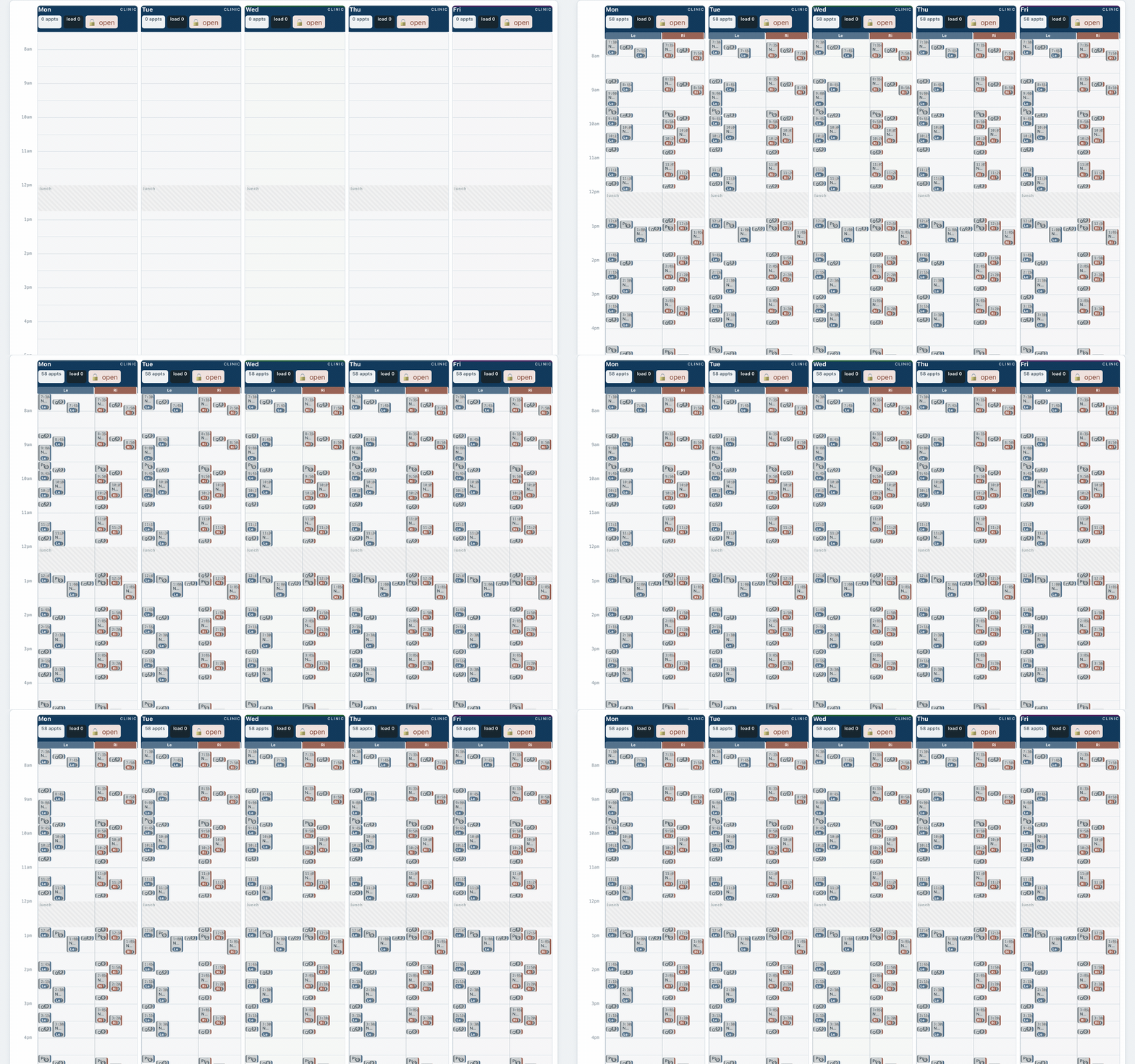
Building replaces the appointments that are not locked. Anything you have locked stays put, so you can hand-place a few key visits, lock them, and let ClinicStudio build the rest around them.
5Read the schedule
Each day is drawn to scale: every appointment shows its true length, and visits that overlap sit side by side. When two or more doctors work the same day, the day splits into a labeled color lane for each doctor, so you can read one provider's cadence at a glance.
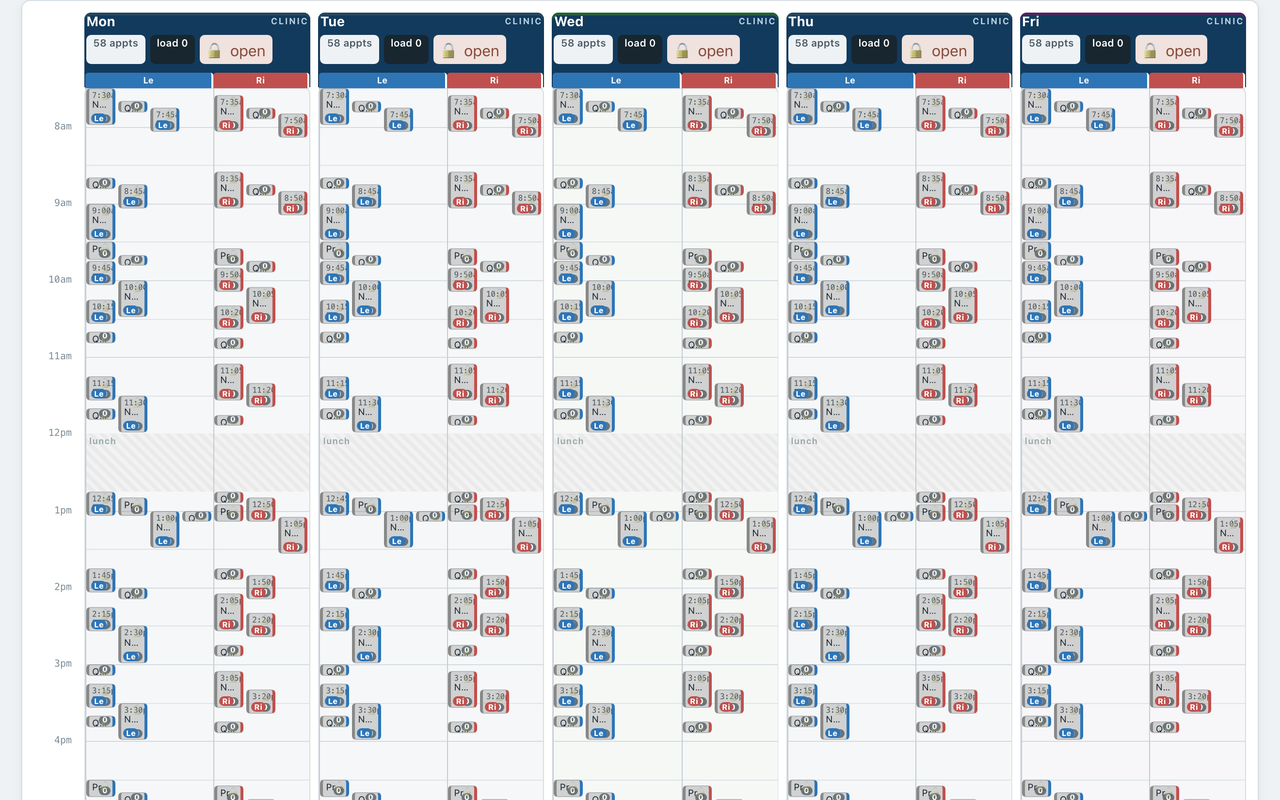
- The load bars at the top show each day's weighted difficulty, so you can see at a glance which day is heaviest.
- Show days lets you hide days from view without turning them off.
- Hide / Show advanced view tucks away the detailed scorecards and tables when you just want the board, and brings them back when you want the numbers.
6Adjust it by hand
The built week is a starting point you own, not a black box:
- Drag an appointment up or down to a new time, or across to another day. A guide line shows the time it will land on, snapped to five minutes.
- Click an appointment to change its type, or click any empty space in a day to add one.
- Lock an appointment (or a whole day) with the lock chip so a rebuild leaves it untouched. A locked day is read-only; an open day is fully editable.
- ↶ Undo reverses the last change.
7Auto-balance, Build to goal, Trim, Copy
Under ADJUST are one-click helpers that respect your rules and your locks:
- ⇆ Auto-balance — evens the load across your days without exceeding your per-day goal.
- ➕ Build to goal — fills a light day up to your target patient count.
- ➖ Trim to goal — removes visits from an over-full day down to target.
- 📋 Copy a day — use one day as the template for another; it flows around whatever is already fixed on the target day.
8The whole-clinic staffing view
ClinicStudio does not just schedule one doctor. Because it merges every provider into one week, it can show the number your front desk actually cares about: how many patients arrive each hour across the whole clinic. A per-hour heat map runs green to red, so you can see exactly when to put a second person at check-in. Turn on Show advanced view to see it, along with the per-day detail table.
9More than one office
Running multiple locations? Add your offices, assign each doctor's clinic days to an office, and ClinicStudio keeps each office's schedule and its front-desk staffing separate. A Show location picker on the board filters to one office or shows them all, and printing and exporting can be scoped to a single office.
10Print and export
When the week looks right, hand it off. Under ⬇ Export ▾ and 📁 Layouts ▾ you will find:
- Print schedule — a clean printed sheet (a time list or a to-scale visual calendar), by day or session. Use your browser's "Save as PDF" for a copy.
- Excel / spreadsheet — every appointment with times, types, and per-day counts, ready to key into your practice management system.
- Calendar file (.ics) — import the template into a calendar.
- Month view — a dated calendar that shows who is in on which date, with recurrence, so you can build a specific date.
Your scheduler enters the build sheet into your system once, and the template is set.
11Make it look like your practice
Click Brand it (or your practice name in the header) and type your website. ClinicStudio picks up your logo, colors, and provider names in about five seconds, so the sheet you print and the page you share look like they came from your organization. Prefer to start clean? Use ↺ Reset to return to the default look.
12Trial, subscription, and your license
- Free trial. Start using ClinicStudio free for 7 days, with no card required.
- Subscribe. When you are ready, click Subscribe and pay securely through Stripe. You are charged $6 per month per practice (early-adopter price). You come straight back to the app, now licensed.
- Your license key. After you subscribe you get a license key (it looks like CS-XXXX-XXXX-XXXX-XXXX-XXXX). The app remembers it for you; keep a copy in case you switch computers.
- Manage or cancel. Click Manage subscription to update your card, see invoices, or cancel. Cancelling keeps your access through the end of the month you already paid for; we do not bill you again after that.
Your card details are handled entirely by Stripe, the same payment processor used by many of the businesses you already buy from. Longleaf Software never sees your card number.
13Privacy and your data
ClinicStudio works with slot shapes and counts, never with people. It holds no patient information — just doctor names and how many of each visit type they see. Your work is saved in your own browser, on your own computer. We never receive it.
14Questions we hear a lot
- Does it connect to my practice management system?
- No, and that is deliberate. No major PM vendor lets outside software write a schedule template, so ClinicStudio produces a clean build sheet your scheduler enters once. Because it holds no patient data, it needs no integration and no business associate agreement.
- Why does the morning count look lower than my hand count?
- To keep mornings humane, a post-op counts as three-quarters of a full visit (they are quick), so the weighted figure reads a little below a straight head-count. That is intentional, not an error.
- Can two doctors have an appointment at the same minute?
- Yes — different doctors in different rooms can share a minute. ClinicStudio only prevents two of the same visit type from landing on the same minute for the same provider.
- Do we schedule surgery here too?
- Clinic scheduling is the core product. Operating-room scheduling rides on top as an add-on module we are building. Ask us about the whole-practice model.
- Will it work for my specialty?
- Yes. You define your own visit types, lengths, days, and providers, so it is not tied to any one specialty.
15Get help
Email [email protected] and tell us what you were trying to do and what you saw. We read every message, and your feedback shapes what ships next. There is also a feedback link inside the app.